Docs / Getting started / The tool window
The tool window
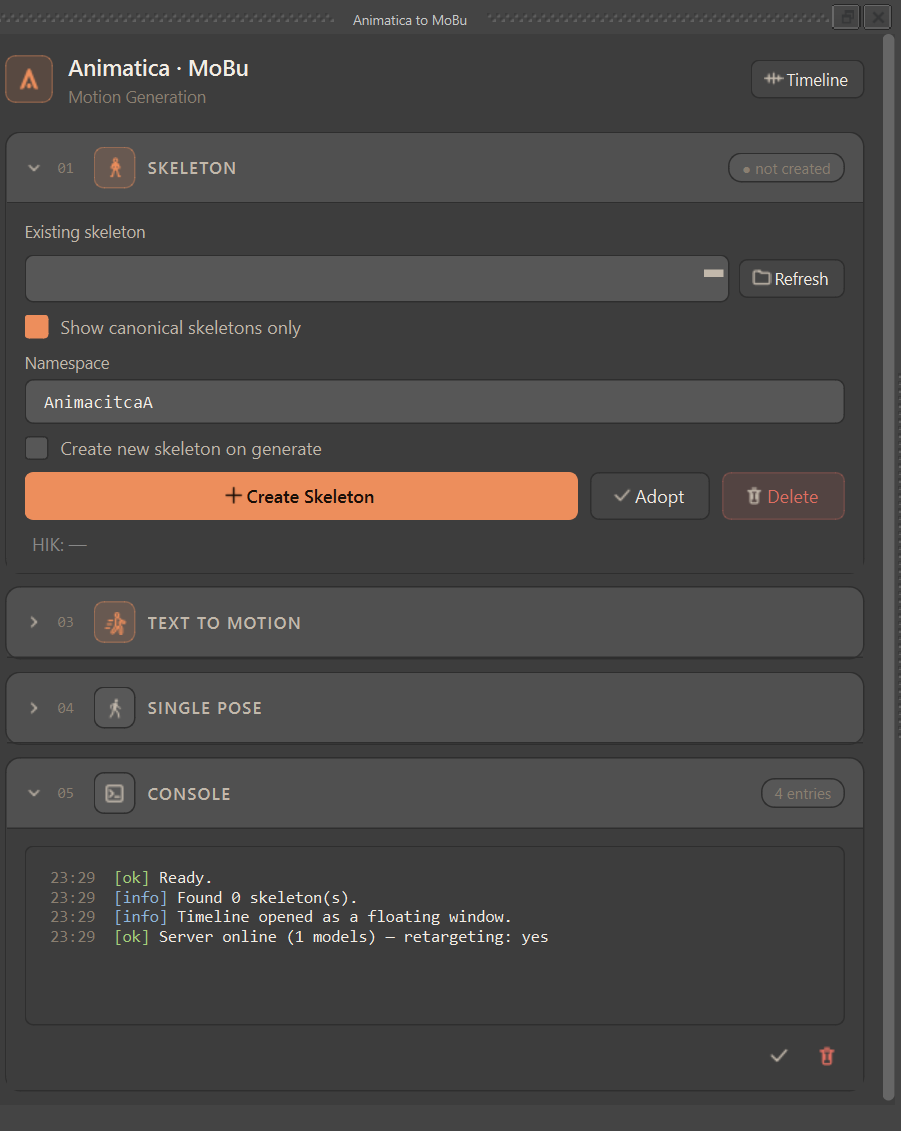
A map of the numbered workflow cards in the main window, and the windows that open beside it.
The main window is a stack of numbered, collapsible workflow cards. The numbers suggest the natural order of work, top to bottom. Each card has a header (click to collapse/expand) and often a status pill on the right. Many groups carry a small Reset button in their header that restores just that group's fields to defaults.
The header row holds the Compact / Full switch — see Compact & Full layout — and the Timeline button that opens the floating Prompt Timeline.
#Cards in the main window
| # | Card | What it's for |
|---|---|---|
| 00 | Model | Which model generates, and the knobs only it has. The choice also decides which rig Create Skeleton builds. |
| 01 | Skeleton | Pick, create, adopt, link, or delete the rig the motion applies to; HIK status. |
| 03 | Text to Motion | The main event: parameters, output target, and Generate Motion. Contains the Constraints sub-card. |
| 04 | Single Pose | Generate one pose at the current frame. |
#Windows of their own
The remaining parts open beside the main window. Settings, Motion Import and Console are native MotionBuilder tools — they dock into your layout, reopen in place, and share the main window's state.
| # | Window | Opens from | What it's for |
|---|---|---|---|
| 00 | Settings | Animatica → Settings… | Backend, server/login, story path, naming, and global options. Has its own Compact / Full switch. |
| 02 | Motion Import | Animatica → Open Motion Import… | Load motion from an .npz / .bvh / .glb / .gltf file. |
| 05 | Console | Animatica → Open Console… | Timestamped log of everything the tool does. |
| 06 | Prompt Timeline | Timeline button, top-right of the main window | Sequence prompts in time and place constraints on a shared ruler. |
Why the numbers skip — The numbers are the workflow order across all parts of the tool, not the order of cards in one column: 00 Settings and Model, 01 Skeleton, 02 Motion Import, 03 Text to Motion, 04 Single Pose, 05 Console, 06 Prompt Timeline.