Docs / Panel reference / Settings
Settings
The Settings window — connection, story path, naming, and global options, grouped into sub-sections.
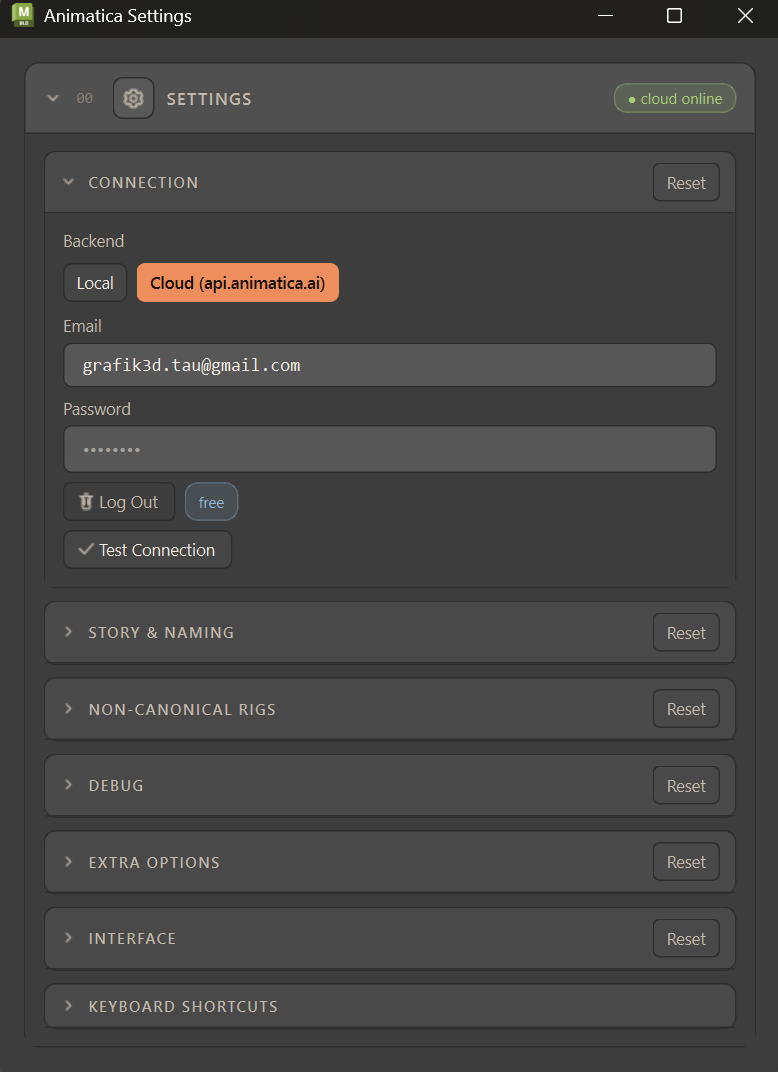
Connection and global options, grouped into sub-sections. Settings opens as a window of its own from Animatica → Settings…; it is a native MotionBuilder tool, so it docks into your layout and reopens in place. The header pill shows connection status, and the header's own Compact / Full switch folds the Story & Naming, Non-canonical rigs, Debug and Extra options groups away without touching the main window (see Compact & Full layout). Most groups have their own Reset.
#Connection
| Control | Description |
|---|---|
| Backend | Toggle between Local and Cloud (api.animatica.ai). The panel below swaps to match. |
| Server URL (Local) | Address of your MMCP server. Default http://localhost:8000. Test checks reachability. Reset here restores only the URL — it never wipes credentials or flips the backend. |
| Email / Password (Cloud) | Your Animatica credentials. Log In / Log Out, plus Test Connection. Your account tier appears as a pill. The password is held only in the field, never saved to disk. |
#Story & Naming
| Control | Description |
|---|---|
| Story Export Path | Folder where exported FBX clips are written when you generate in Story mode. Browse to pick it. |
| Auto take-name length | How many leading characters of the prompt seed an auto-generated take name (1–120, default 50). |
#Non-canonical rigs
Collapsed by default — only needed when driving your own (non-plugin) skeleton.
| Control | Description |
|---|---|
| Skip top joint when sending hierarchy | On by default. Skips a synthetic Reference/Root null above the hips so the next joint (usually Hips) is treated as the character root. Ignored when the top joint has several joint children (a rig rooted at Hips). |
| Retarget route | How a rig that does not match the selected model is reconciled with it. Auto — server if it can, else HIK (default): the server retargets when it reports a retarget model (a server too old to report is still tried), otherwise the HIK route, and if neither is available the generation is refused. Server — send my rig, server retargets: your rig's hierarchy goes with the request and the motion comes back on its own joint names. HIK — generate on the model's rig, drive mine: the tool builds the model's own rig, characterizes both, and your rig follows through HumanIK. None — leave my rig alone: nothing is retargeted; the action stops with a Console error instead. |
| Compensate group scale + Group scale | When your rig sits under a uniformly scaled null, divides wire offsets on send and multiplies them back on apply so geometry stays correct. |
When the route is consulted — Only when the scene rig and the selected model disagree. A rig that already matches needs no route at all: the request goes out on the canonical skeleton and the motion maps back onto your rig by name, with no retarget step. Generate Motion, Generate Selected Prompt, the gapped group fan-out and Generate Pose at Current Frame all ask the same question, so None stops all four. The HIK route belongs to Generate Motion alone — the other three say so in the Console and send the rig to the server instead. Picking a route explicitly also skips the automatic fallbacks: a model that cannot retarget falls back to HIK only under Auto.
#Extra options
| Control | Description |
|---|---|
| Match scene FPS | On by default. Keys generated motion frame-for-frame at the scene FPS so authored frames & constraints stay 1:1. Off = key at the model's native 30 fps (real-time pace, but frames may shift). A no-op when the scene is already 30 fps. |
| Send path heading (face along path) | On by default. Derives a body facing from each Path waypoint and sends it to the server so the character turns to face its direction of travel. May over-constrain sharp turns — compare with it off. |
| Send real body context with hand/foot pins | Experimental, off by default. Sends the rig's real pelvis position and facing alongside every hand/foot pin that has no Path or Full Body pin on its frame. Off, the server approximates the body from a T-pose around each pin — which can push the torso away from where you posed it; on, the pelvis is also pinned, which constrains the trajectory more. Compare both on your shot. |
| Path waypoint wins over same-frame hand/foot pins | On by default. When a Path waypoint shares a frame with a hand/foot pin, both tell the root where to be. On: the waypoint wins — your authored body position is honoured and motion stays natural, with the pin landing near (not exactly onto) its target. Off: the pin wins — it snaps almost exactly onto its target, but the body may jump to reach it. The choice is deterministic either way; the order you created the markers in never matters. Against a current Animatica Cloud server the two settings produce the same motion, because pins are now built from the generated motion itself (see Constraints); the switch still matters on an older local server. |
| Duplicate path waypoints at block seams | On by default. A Path waypoint sitting exactly on the frame two touching prompt blocks share belongs to the later block only, so the earlier block would run its last stretch unsteered and slide at the seam. On, the waypoint is also sent one frame earlier, so both blocks are steered. Off sends it to the later block only. |
| Correct ground offset | Off by default. The server returns motion floating a measured ~2 cm above the ground; this subtracts that measured amount from the applied root height so the planted foot lands on the plane. Canonical-skeleton generations only (a custom/retargeted rig is skipped, with a Console note). Trade-off: Full Body pinned poses land lower than their authored scene height by the same amount. |
#Interface
| Control | Description |
|---|---|
| Show Motion Import panel | In MotionBuilder, Motion Import is a window of its own, opened from Animatica → Open Motion Import… whether this is on or off. The switch is shared with hosts that show Motion Import as an inline card. |
| Open Animatica on MotionBuilder startup | Auto-opens the tool once when MoBu finishes loading. |
#Debug
Collapsed by default.
| Control | Description |
|---|---|
| Save request / response JSON + Debug folder | Writes request.json / response.json / motion.json / meta.json per run so a misbehaving session can be diffed against a known-good one. Default folder: ~\Documents\MB\Animatica_Debug. |
| Omit timing block | Experiment — drops the FPS block from the request; the server may default its FPS or reject. |
| Omit frame-0 root anchor | Experiment — suppresses the implicit root_path anchor the tool injects at frame 0. That anchor keeps generated motion from drifting off its start point; leave this off. (The pose anchor the tool adds when a Full Body pin sits later in the range already stands aside on its own when you pinned the start frame yourself — see Constraints.) |
| Send scene FPS in timing | Experiment — measured to be rejected by the server, so the generation fails. Left in place to re-test if server-side resampling ever ships. Overridden by Omit timing block. |
| Send effector rotations | Probe lever — adds each hand/foot pin's captured local quaternion (rotations) to its effector_target wire. Ignored by the hosted server (measured no-op); consumed only by a local kimodo_server. A pin dragged after capture ships the rotation captured before the drag, with a warning — recreate the pin to refresh it. |
A read-only reference of the timeline's full interaction vocabulary lives at the bottom of Settings. The complete tables are reproduced under Keyboard & mouse.