Docs / Panel reference / Prompt Timeline
Prompt Timeline
The floating timeline window where prompts are laid out in time and constraint pins sit on the same ruler.
The timeline has no home inside the panel: it lives in a floating window that opens by itself the first time the tool window is shown, and is re-opened from the Timeline button in the tool window's header. Closing it hides it — your prompts are not lost.
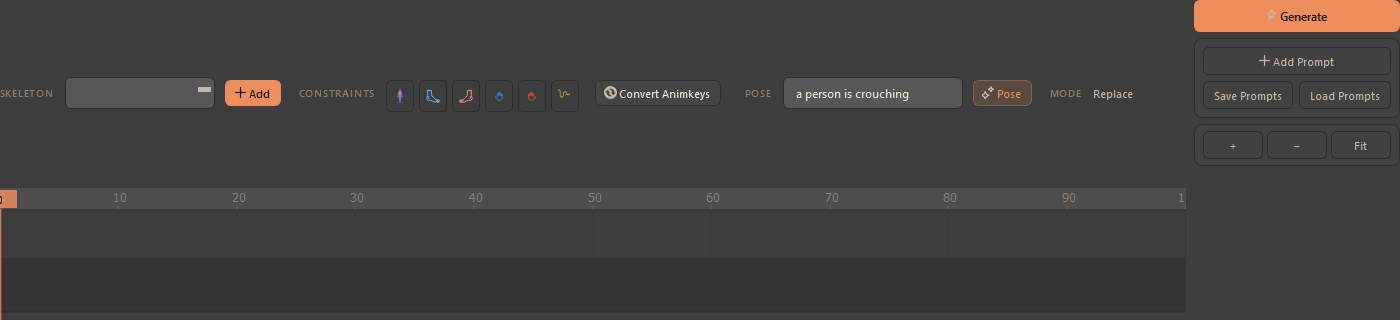
Reading the header left to right: the skeleton selector with Add, the six constraint quick-add buttons, Convert Animkeys, the inline pose prompt with Pose, and the mode readout — which in 3ds Max always says Replace. The right-hand column holds Generate, Add Prompt, Save Prompts / Load Prompts and the zoom controls (+, −, Fit). The ruler below carries the prompt blocks and the constraint pins.
#Blocks
- Add Prompt creates a block; double-clicking empty space creates one and opens its editor straight away.
- Double-click a block to edit its text inline.
Entercommits,Esccancels. - Drag a block to move it, drag its edge to resize. Hold
Shiftto disable snapping,Altto push the neighbour out of the way (or to jump past it),Ctrlwhile resizing an edge to scale the block's interior pins with it. - Right-click for the context menu: constraint actions, prompt actions (edit, regenerate, export, snap) and view fits.
Faint dots in the marker band mark frames where the root joint carries keys.
#Header controls
The skeleton selector is the same picker as in Skeleton and stays in lock-step with it — change one and the other follows, and the ruler below switches to the picked rig's prompts and pins. Add does what Create Skeleton does. Fit re-syncs the view to the scene range and resets the zoom.
The scene range is yours — the timeline follows the scene's range and frame rate live, and Animatica never writes the scene range back.
#One timeline per rig
Prompts and pins belong to a rig, not to the scene. The skeleton selector in the header decides whose ruler you are looking at:
- Switch rigs and the ruler swaps to that rig's prompt blocks and pins. The other rig's are not lost — switch back and they are as you left them.
- Delete a rig in Skeleton and its prompts, pins and viewport markers go with it.
- Undo is per rig —
Ctrl+Zover the timeline walks back the edits made to the rig on screen, not the other one's.
The identity is a stamp written on the rig itself, so it survives save, load and renaming the rig.
Prompts and pins with no owner — prompts and pins that carry no rig stamp sit in one unowned set. The first time you pick a rig in such a scene, the plugin adopts that set onto the rig — in a scene with one canonical rig, that is. With several rigs it does not guess; the Console tells you what it did either way.
The timeline is never compacted: the Compact / Full switch in the tool window folds the column, not this window.
#Saving prompts
Prompts travel inside the .max file: they are stored on the scene root in a binary-safe slot that survives save and load, and they are invisible in Max's own file-properties UI. You do not have to do anything to keep them.
Save Prompts and Load Prompts additionally write them to, and read them from, a file of their own — useful for moving a set of prompts between scenes.
#Generating from here
Generate in the header, and Ctrl+G with the mouse over the timeline, both
run the same request as Generate Motion in
Text to Motion: one request built from every
prompt block on the ruler.