Docs / Panel reference / Settings
Settings
The Settings window — connection, rig handling, experiment levers and interface toggles, in six groups.
Opened from Animatica ▸ Settings…. It is a window rather than a card, and it shares the tool window's state, so a change here applies immediately.
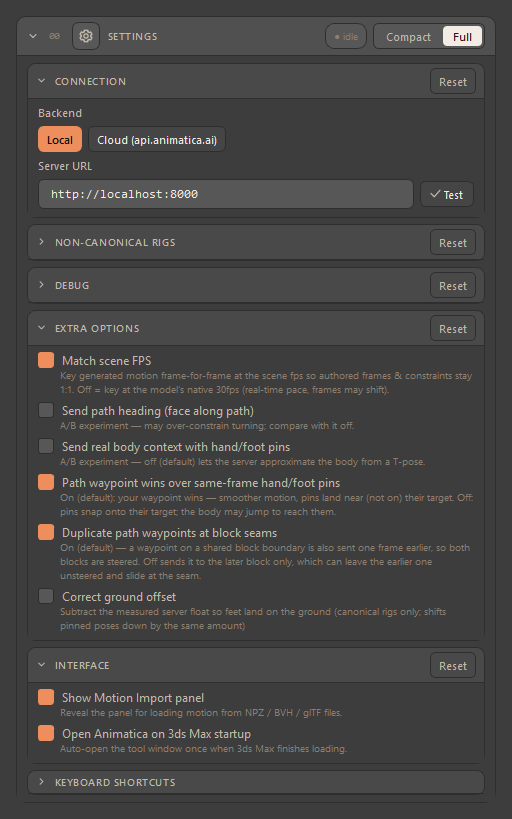
Each group carries its own Reset, scoped to the fields that group owns.
The card header carries a Compact / Full switch of its own. It is a separate flag from the tool column's: Compact here folds Non-canonical rigs, Debug and Extra options and leaves Connection, Interface and the shortcuts reference on screen. Nothing folded is reset, and the hidden-options line under Generate Motion still reports any of them that differ from default. A fresh install opens Compact.
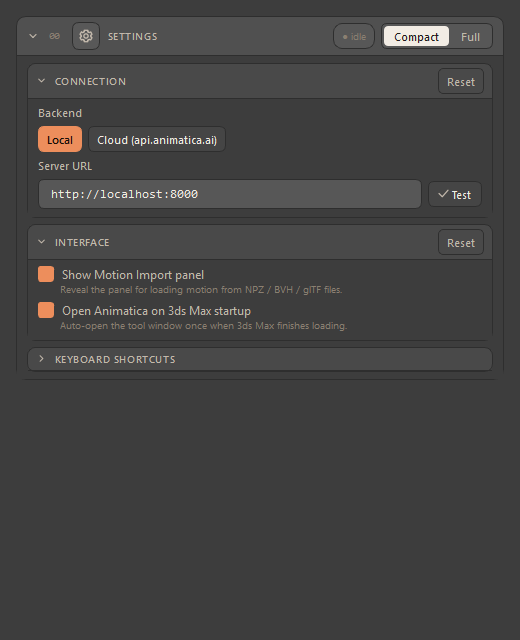
There is no Naming group here. In other hosts it names animation containers; 3ds Max holds one animation, so there is nothing to name and the group is not shown.
#Connection
| Control | Description |
|---|---|
| Backend | Local or Cloud (api.animatica.ai). The panel below swaps to match. |
| Server URL (Local) | Where your MMCP server listens; the default is http://localhost:8000. Test re-checks it. |
| Email / Password / Log In / Log Out / Test Connection (Cloud) | Your Animatica account. |
The backend and the server URL are shared across every Animatica host on the machine: it is one account against one server, so signing in or changing the URL in one application covers the others. Everything else in this window is per-host.
The header pill reports the last verdict. Availability is re-probed on first show, on Test, when you switch backend, and — debounced — while you type a URL. Typing only updates the pill; a backend switch may also offer recovery actions.
A busy local server looks like a dead one — the liveness probe waits five seconds. A single-worker local server in the middle of answering a generation cannot answer the probe within that window, so it is reported as unreachable even though it is running and working normally. Wait for the run to finish, then press Test.
#Non-canonical rigs
| Control | Description |
|---|---|
| Skip top joint when sending hierarchy | On by default. Most rigs carry a synthetic reference node above the hips that the server does not expect; this uses the next joint, usually Hips, as the character root. It is checked before it is applied: on a rig whose root already has several joint children — a rig rooted at Hips — there is nothing to skip, so the hierarchy is sent with its root and the Console says so. |
| Retarget route | How a rig that differs from the model's skeleton is reconciled. Leave it on Auto: in 3ds Max retargeting happens on the server, so Auto asks the server for its retarget state and lets it decide. Server forces the rig onto the wire; None asks for no retarget anywhere. |
| Compensate group scale + Group scale | For a rig sitting under a scaled parent. Offsets are divided by the value on send and multiplied back on apply. Uniform scale only. |
A route from another host is not honoured silently — a saved route that names a local retarget resolves back to Auto, and the Console says so. Retargeting is server-side here; there is no local route to fall back to.
#Debug
A Debug folder and a switch that writes one folder per generation run
underneath it — request, response, motion and metadata — useful for diffing a
misbehaving session against a known-good one. The default folder is this
host's own, Documents\3ds-max\Animatica_Debug; a folder you type wins
over it.
The rest of the group holds clearly-labelled experiment levers. Each says in its own sublabel that it is an experiment and what the server does with it. Leave them alone unless you are chasing a specific problem with support.
The group is remembered — every switch here persists across sessions like any other setting, with one exception: Debug: send scene FPS in timing resets each session, because the server rejects a request whose timing disagrees with the model's rate, and a probe left on would make later generations fail rather than tint them. Several of the others change the outgoing request itself, so a lever left on from a past session alters every generation until you turn it off; in Compact, the hidden-options line under Generate is what tells you.
#Extra options
| Option | Meaning |
|---|---|
| Match scene FPS | On: generated motion is keyed frame-for-frame at the scene frame rate, so authored frames and constraints stay 1:1. Off: keys land at the model's native 30 fps — real-time pace, but frames may shift. A no-op in a 30 fps scene. |
| Send path heading (face along path) | An A/B experiment; it may over-constrain turning. Compare with it off. |
| Send real body context with hand/foot pins | An A/B experiment. Off (the default) lets the server approximate the body from a T-pose. |
| Path waypoint wins over same-frame hand/foot pins | On (default): your waypoint is steered — smoother motion, pins land near but not on their target. Off: pins snap onto their target, and the body may jump to reach them. The setting is persisted. |
| Duplicate path waypoints at block seams | On by default: a waypoint on a shared block boundary is also sent one frame earlier, so both blocks are steered. Off sends it to the later block only, which can leave the earlier one unsteered and sliding at the seam. |
| Correct ground offset | Subtracts the measured server float so feet land on the ground. Canonical rigs only; it shifts pinned poses down by the same amount. |
#Interface
| Control | Description |
|---|---|
| Show Motion Import panel | Has no effect in 3ds Max. In other hosts it reveals card 02 inside the column; here Motion Import is a window of its own, opened from Animatica ▸ Open Motion Import…, and is never in the column. |
| Open Animatica on 3ds Max startup | Has no effect in 3ds Max. The preference is stored, but this plugin never reads it back, so the window does not open by itself. |
Both switches do nothing here, for the same reason: the setting is shared with the other hosts, and only they act on it. Open both windows from the Animatica menu. There is no Show Live Drive panel switch: this host declares no live-drive capability, and a switch whose only effect would be a card of dead buttons is not shown.
#Keyboard Shortcuts
A collapsed, read-only reference to the timeline's full interaction vocabulary — the same keys and gestures that work with the mouse over the Prompt Timeline.